Reduce Traffic Interruptions with Gateway Load Balancer TCP Reset
When a firewall or security appliance behind your Gateway Load Balancer (GWLB) fails, what happens to the TCP connections flowing through it, and how long do those traffic interruptions last? Until today, they could hang while TCP retry mechanisms and exponential backoff ran their course, sometimes for minutes. For mission-critical applications, every second of interruption matters.
Today, we’re announcing TCP Reset for Gateway Load Balancer, a new feature with which you can configure GWLB to send TCP Reset (RST) packets when a target is marked unhealthy, deregisters, or an existing flow idles out. This reduces traffic interruptions from minutes to a few seconds (Refer to the “Performance expectations” section for timing details), so your applications recover quickly by establishing new connections to healthy targets. TCP Reset is available at no additional charge, in each AWS Regions where GWLB is supported.
In this post, we describe the capability, how it works, how to configure it, and how to monitor it.
Existing behavior:
GWLB operates as a bump-in-the-wire. It transparently distributes traffic to targets such as security appliances (firewalls), intrusion detection systems, and deep packet inspection tools. When a target’s state changes to unhealthy, GWLB continues forwarding existing flows to it. This default behavior, known as fail open, preserves existing connections through transient blips, but it creates a poor experience when a target fails for a sustained period. Client and server applications have no visibility into the appliance failure and therefore experience timeouts. The built-in TCP retry and exponential backoff mechanisms take 30 seconds to several minutes before abandoning the connection.
For time-sensitive workloads such as financial trading platforms, real-time communications, or e-commerce checkout flows, this interruption window is unacceptable.
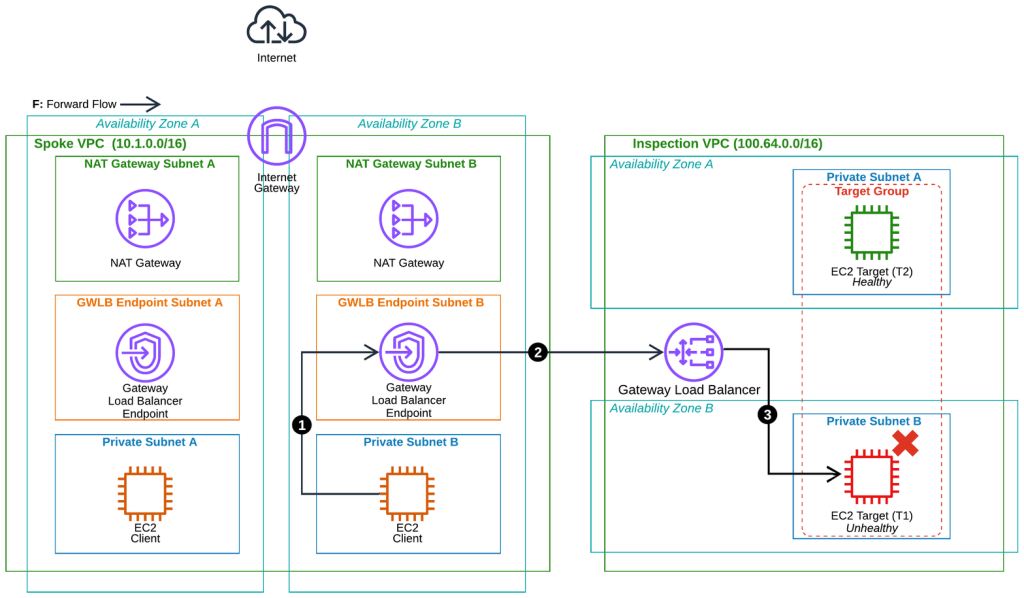
Figure 1: Current behavior (fail open).
- The sender has an existing TCP forward flow (F) routed through the Gateway Load Balancer Endpoint (GWLBE).
- GWLBE forwards the packet to the GWLB in the Amazon Virtual Private Cloud (VPC) used for Inspection.
- If the target fails the configured health checks, the GWLB will continue sending traffic to the unhealthy target (T1), traffic is dropped and the client hangs while TCP retransmits (30 seconds to over 5 minutes).
This is the default behavior of how GWLB handles flows during target failure scenarios. For more information on how GWLB handles flows during target failure, Refer to Target failure scenarios.
The solution: TCP Reset from GWLB:
When you activate TCP Reset, GWLB detects target failures and informs the sender by sending a TCP Reset packet in response to incoming traffic on an existing flow. This signal tells the client or server that the flow is terminated and to retry now. Applications commonly retry after receiving a TCP Reset, establishing a new flow that GWLB forwards to a healthy target.
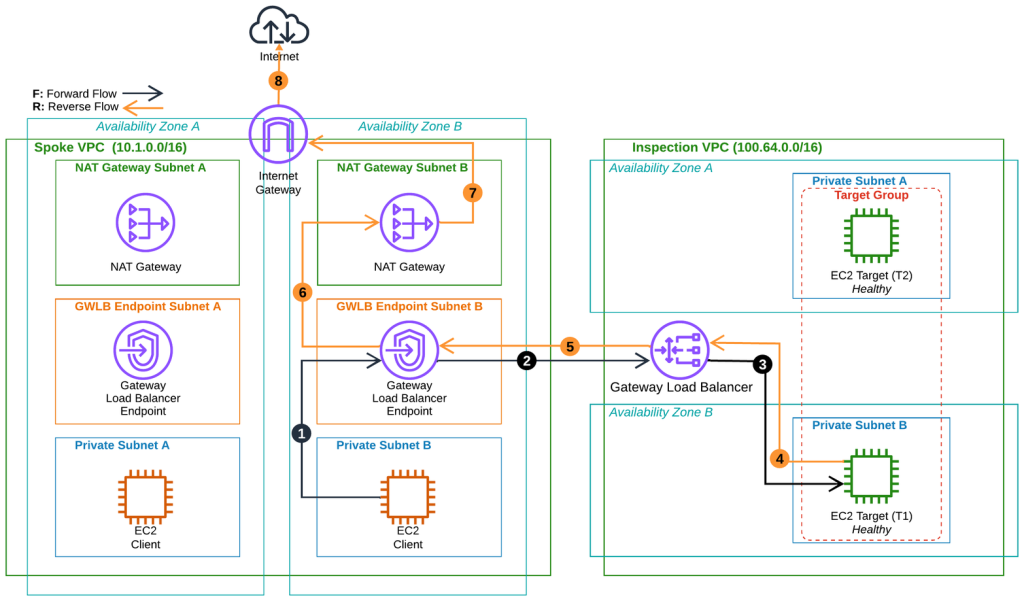
Figure 2: Normal healthy operation. Client flow reaches a healthy target and egresses successfully to the internet destination.
- An EC2 (Client) initiates the forward flow (F) to an internet destination; traffic is routed to the GWLBE for inspection.
- The GWLBE forwards the flow to the GWLB in the Inspection VPC.
- The GWLB forwards the flow to the healthy EC2 Target (T1).
- T1 returns traffic on the reverse flow (R) to the GWLB.
- The GWLB sends the return traffic to the GWLBE.
- The GWLBE sends it toward the original destination via the NAT Gateway.
- The NAT Gateway forwards the traffic to the Internet Gateway.
- The Internet Gateway sends it to the internet destination.
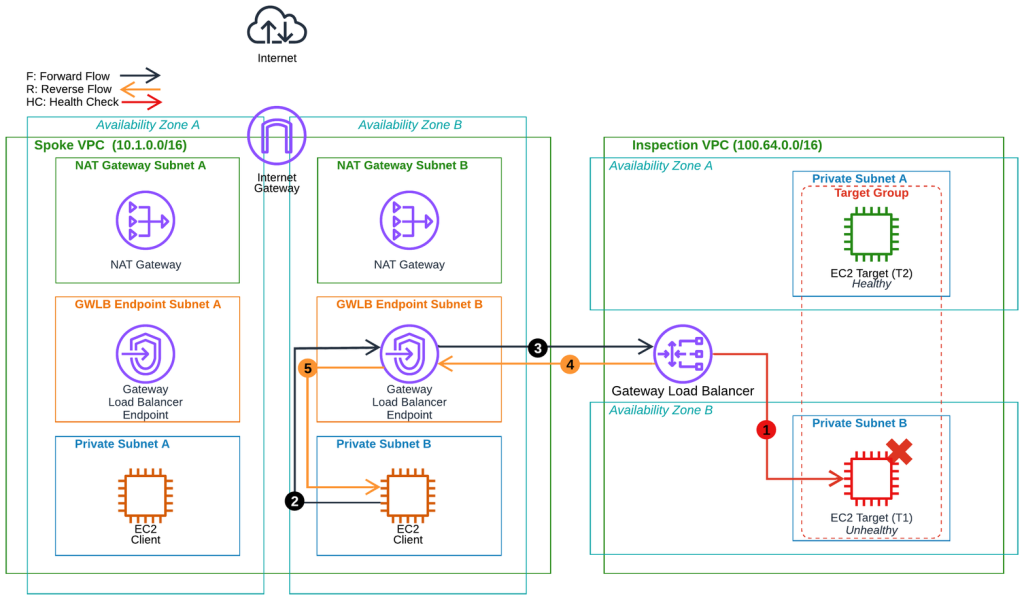
Figure 3: Target status changes to unhealthy on an existing flow. The client sends an additional packet on the flow and receives a TCP Reset from the GWLB.
- The EC2 Target (T1) handling the existing flow (F) fails the configured Target Group (TG) health checks from the Gateway Load Balancer (GWLB) and is marked unhealthy.
- A packet from the EC2 Client (sender) is sent on the forward flow and routed through the GWLBE.
- The GWLBE forwards the packet to the GWLB in the Amazon Virtual Private Cloud (VPC) used for Inspection.
- The GWLB sends a TCP Reset back on the reverse flow (R) and removes the flow entry.
- The sender receives the TCP Reset.
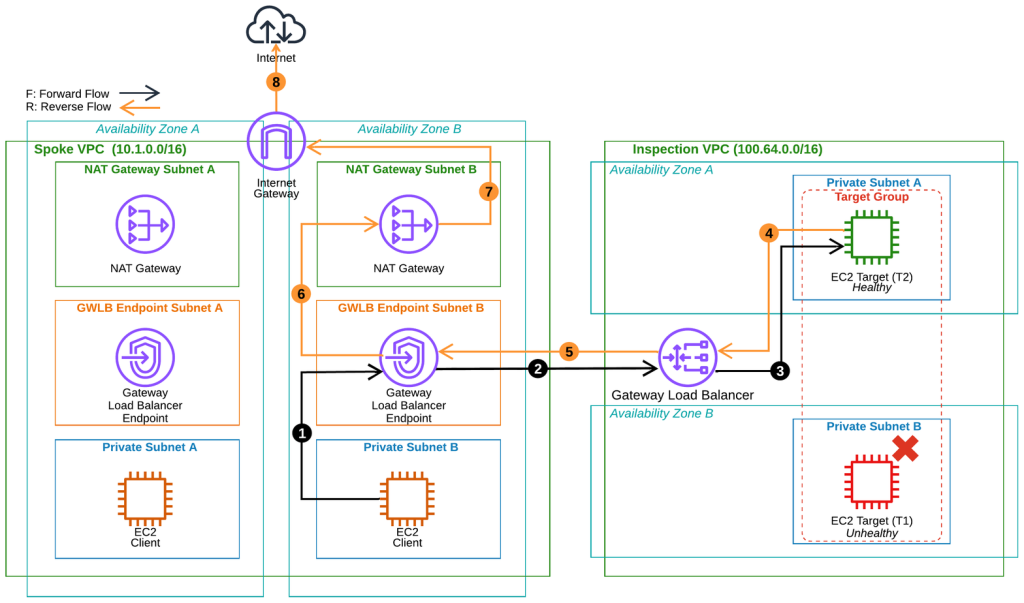
Figure 4: After the reset, the application retries and a new flow is created to a healthy target, egressing successfully.
- The EC2 (Client) retries with a new forward flow (F) to the internet destination, routed to the GWLBE.
- The GWLBE forwards the flow to the GWLB.
- The GWLB routes the flow to the healthy EC2 Target (T2).
- T2 returns traffic on the reverse flow (R) to the GWLB.
- The GWLB sends the return traffic to the GWLBE.
- The GWLBE sends it toward the original destination via the NAT Gateway.
- The NAT Gateway forwards the traffic to the Internet Gateway.
- The Internet Gateway sends it to the internet destination.
How it works:
GWLB sends a TCP Reset for three types of triggers:
| Trigger | When TCP Reset is sent | GWLB attribute to enable |
| Target becomes unhealthy | After target health failure is detected (after the configured number of consecutive health check failures) | send_tcp_reset.on_unhealthy.enabled (target group attribute) |
| Target deregisters | After the connection drain time elapses | send_tcp_reset.on_deregistration.enabled (target group attribute) |
|
TCP flow idle timeout Non-SYN TCP packet is received |
After the TCP idle timeout expires | send_tcp_reset.on_idle_timeout.enabled (listener attribute) |
Set the GWLB target group attribute and listener attribute values to true to allow the GWLB to send a TCP Reset. The default value is false, which preserves the existing fail-open behavior. After GWLB sends a TCP Reset, it removes the flow entry from its flow table. GWLB then treats incoming traffic as a new flow and load-balances it to a healthy target.
GWLB sends a TCP Reset only in response to incoming traffic. It does not generate unsolicited TCP Reset packets.
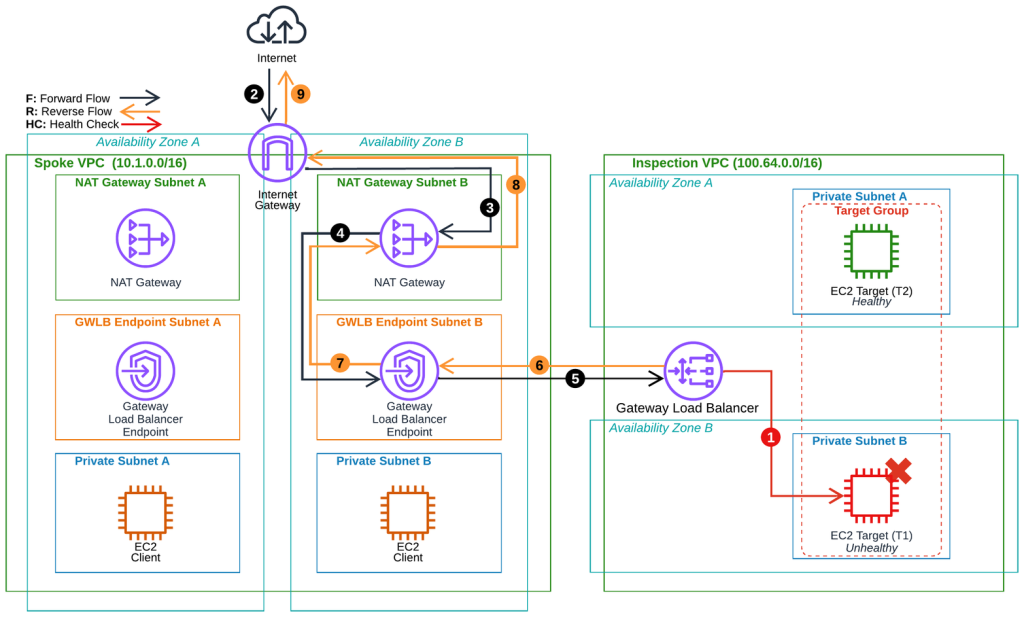
Figure 5: Alternative to Figure 3. Target status changes to unhealthy on an existing flow. The destination sends a packet toward the client and receives a TCP Reset.
- An EC2 Target (T1) handling an existing flow (F) failed the configured health checks from the GWLB and is marked unhealthy.
- A packet from the destination (sender) arrives at the IGW destined for the existing flow with the client.
- IGW forwards the packet toward the NAT Gateway (NGW).
- The NGW forwards the packet to the GWLBE.
- The GWLBE forwards the packet to the GWLB in the Inspection VPC.
- The GWLB sends a TCP Reset back on the reverse flow (R) and removes the flow entry.
- The GWLBE forwards the TCP Reset via the NGW.
- The NGW forwards the TCP Reset to the IGW.
- The IGW sends the TCP Reset to the sender.
In both scenarios (Figure 3 and Figure 5), GWLB sends the TCP Reset to the sender of the incoming packet.
The following sections show how to implement the new feature using the AWS CLI or the console.
Getting started:
Using the CLI
Use the modify-target-group-attributes command to turn on TCP Reset:
aws elbv2 modify-target-group-attributes \
 --target-group-arn  \
 --attributes \
 Key=send_tcp_reset.on_unhealthy.enabled,Value=true \
 Key=send_tcp_reset.on_deregistration.enabled,Value=true
Verify your configuration:
aws elbv2 describe-target-group-attributes \
 --target-group-arn
Using the console
- Open the Amazon EC2 console and navigate to Load Balancing, Target Groups.
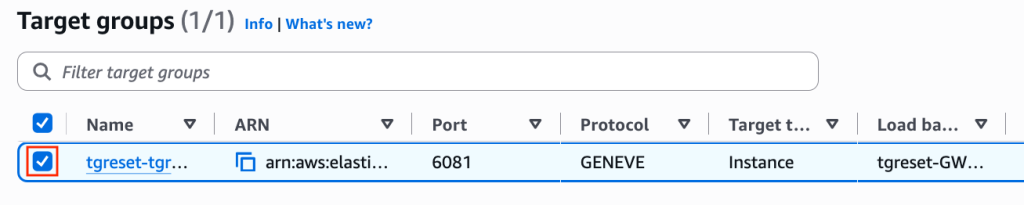
Figure 6: The Amazon EC2 console Target Groups list. The GWLB target group uses the GENEVE protocol on port 6081.
- Choose your target group, choose the Attributes tab, and choose Edit.
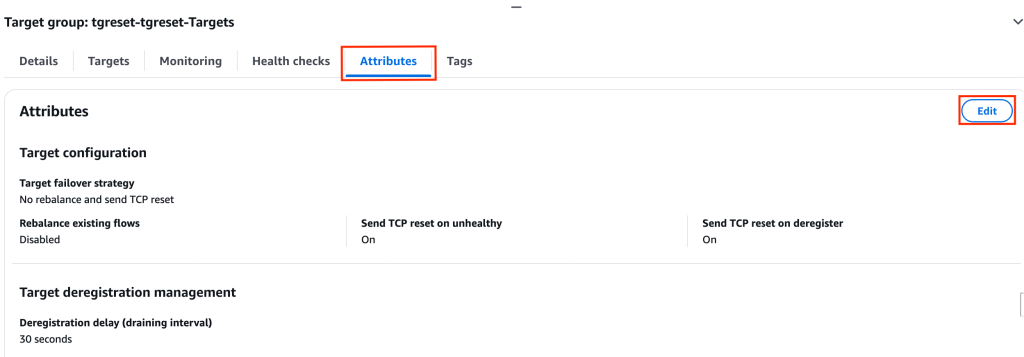
Figure 7: The Attributes tab of the target group, with the Edit button selected.
- Choose the “No rebalance and send TCP reset” tile (marked recommended), then turn on “Send TCP reset on unhealthy” and “Send TCP reset on deregister.”
- Choose Save changes.
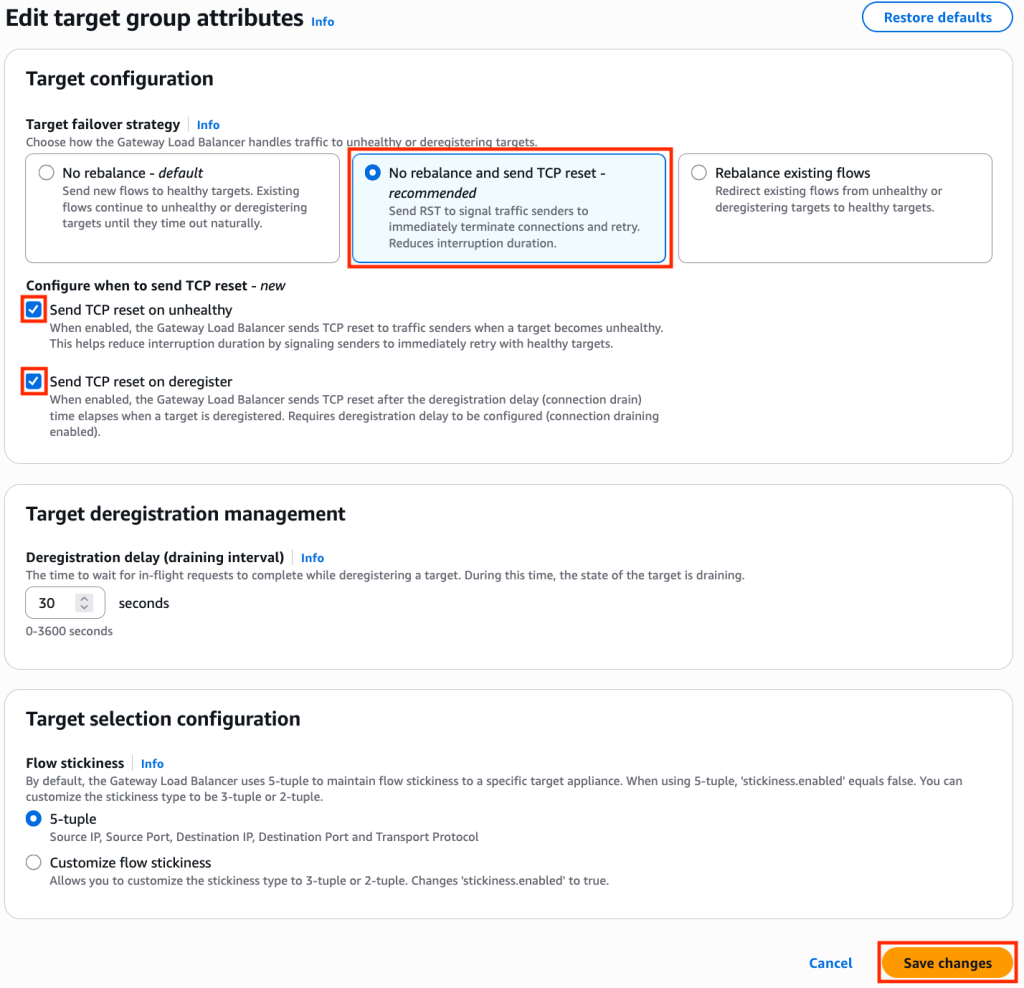
Figure 8: The “No rebalance and send TCP reset (recommended)” tile and both TCP reset options are selected, with the Save changes button highlighted.
The feature works with both new and existing Gateway Load Balancers. Please note that TCP Reset requires 5-tuple flow stickiness (source IP, source port, destination IP, destination port, and protocol) enabled on the target group.
Monitoring TCP Reset activity:
A new Amazon CloudWatch metric helps you to observe GWLB TCP Resets:
- TCP_ELB_Reset_Count: Total TCP Reset packets generated by the load balancer (the new feature in action).
To view this metric, open the Amazon EC2 console, select “Load Balancers” and select the Gateway Load Balancer, then select the “Monitoring” tab.
The tab displays the TCP Reset metric alongside your other load balancer metrics, where you can confirm reset activity during failover events.
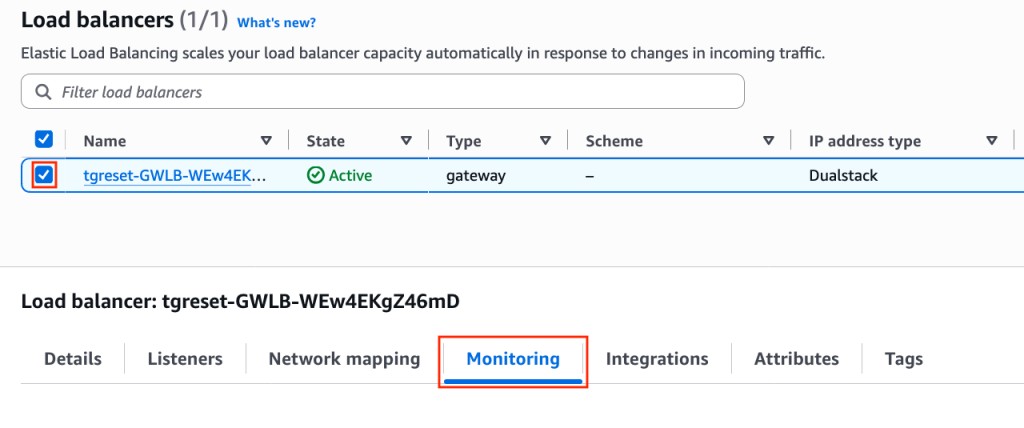
Figure 9: The Monitoring tab of the Gateway Load Balancer in the Amazon EC2 console.
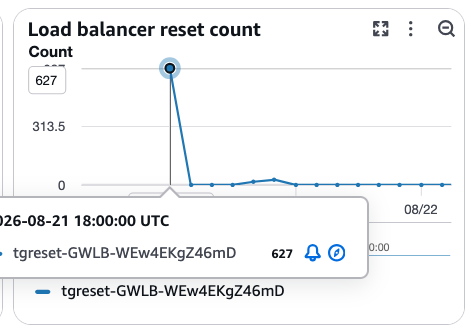
Figure 10: The “TCP_ELB_Reset_Count” CloudWatch metric displayed on the Monitoring tab.
Interaction with other GWLB features:
- TCP idle timeout. TCP Reset works alongside the existing configurable TCP idle timeout feature. When implemented, GWLB sends a TCP Reset after the idle timeout expires, which actively closes stale flows instead of silently dropping them. For details on configuring the TCP idle timeout, refer to Introducing configurable TCP idle timeout for Gateway Load Balancer.
- Flow Rebalance. If you turn on GWLB Flow Rebalance, it takes precedence over TCP Reset. This is by design. Flow Rebalance intentionally moves existing flows to new targets and preserves the connection, so sending a TCP Reset would negate that intent.
- Flow stickiness. TCP Reset requires 5-tuple flow stickiness (source IP, source port, destination IP, destination port, and protocol) enabled on the target group.
Performance expectations:
The timing from a target failure to TCP Reset delivery depends on your health check configuration:
- Health check detection equals the interval multiplied by the unhealthy threshold (for example, a 10-second interval and a threshold of 3 equals 30 seconds).
With default health check settings (a 30-second interval and a threshold of 3), expect TCP Reset delivery 3 minutes after target failure. With aggressive settings (a 5-second interval and a threshold of 2), detection happens in as little as 10 seconds, and total TCP Reset delivery completes in up to 90 seconds.
Tip: Tune your health check interval and unhealthy threshold to minimize detection time. Even with the propagation window, this is faster than waiting for TCP exponential backoff, which can exceed 5 minutes.
Best practices:
- Faster failover improves the user experience during target failures, target deregistrations, or after the TCP idle-timeout expires.
- Do not change your existing application layer timeouts. TCP Reset complements the application’s connection timeout and retry logic.
- Tune health checks. Shorter intervals and a lower unhealthy threshold reduce total failover time, but they can increase health check traffic and the chance of false positives from transient blips.
- Test in a non-production environment first. Verify that the stateful inspection appliances (targets of GWLB) handle TCP reconnections gracefully.
- Monitor with Amazon CloudWatch using the new TCP Reset metric (TCP_ELB_Reset_Count) to validate failover behavior.
Pricing and availability:
GWLB supports TCP Reset in AWS Regions where GWLB is available. There is no additional charge for this feature. The existing GWLB pricing includes it based on load balancer hours and Load Capacity Units (LCUs).
Conclusion:
In this post, we showed how TCP Reset for Gateway Load Balancer reduces traffic interruptions when a target fails, deregisters, or a flow idles out. We also covered how to monitor and implement it. If you run stateful inspection appliances (firewalls, intrusion detection systems, or deep packet inspection tools) behind GWLB and want faster recovery from target failures, implement TCP Reset today.
Further reading:
About the authors

Donathan Ratcliffe
Donathan is a Solutions Architect at Amazon Web Services (AWS) supporting the Aerospace and Satellite industry. He has over a decade of experience in networking and cybersecurity, spanning solutions architecture, network engineering, and systems design. He partners with space and defense organizations to design secure, resilient cloud and network architectures. He also contributes to space industry ground-segment virtualization efforts.

Milind Kulkarni
Milind Kulkarni is a Principal Product Manager at Amazon Web Services (AWS). He has over 20 years of experience in networking, data center architectures, SDN/NFV, and cloud computing. He is a co-inventor of 13 US Patents and has co-authored 3 IETF Standards